> ## Documentation Index
> Fetch the complete documentation index at: https://docs.poozle.dev/llms.txt
> Use this file to discover all available pages before exploring further.
# OAuth
> Integration Accounts signify end-user connections. OAuth method facilitates links the app and third-party platforms.
{" "}
For a more automated approach, consider creating OAuth apps using our [Create API](/api-reference/oauth/create_oauth){" "}
Adding a custom OAuth app requires registration of the application with the API provider to obtain the Client ID and Client Secret. Don't forget to register required scopes with both the API provider and on the OAuth page.
### Create a New OAuth Account
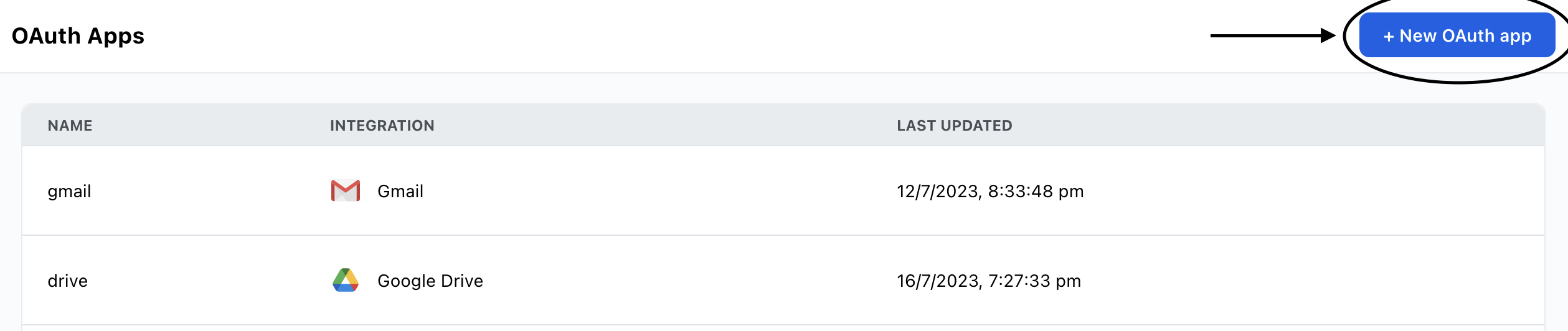
1. On the OAuth tab, Click on `+ New OAuth App`:
 2. Choose the integration you want to connect and provide the necessary information.
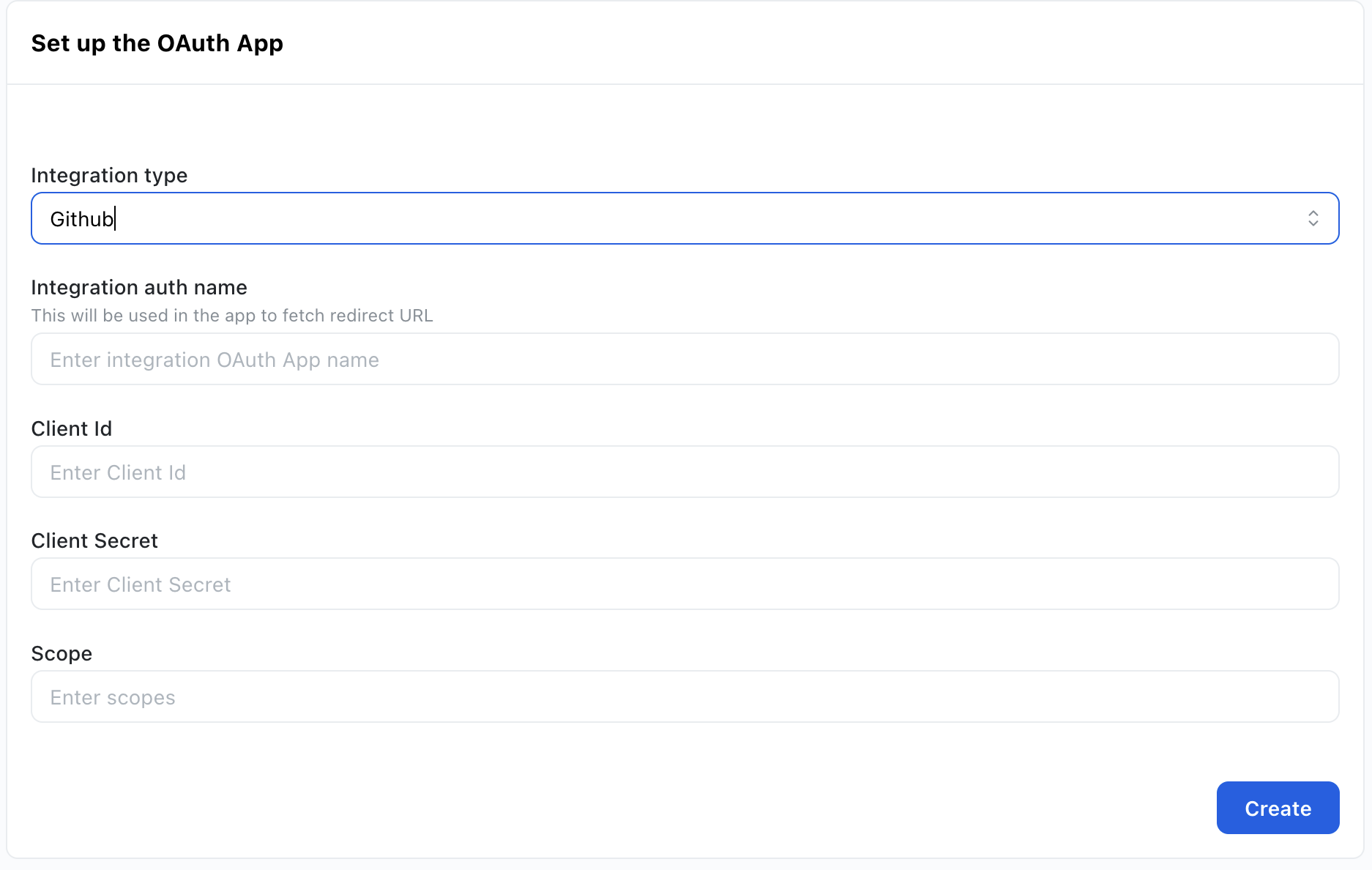 3. Enter the client\_id, client\_secret and scopes according to the integration. Once done you can click on create.
4. Once the OAuth is created it will show in the OAuth page. You can now access repective OAuth in the link page.
### Callback URL
Please add this Callback URL respectively in the respective OAuth app
Cloud
```
https://app.poozle.dev/api/v1/oauth/callback
```
Self Hosted
```
https://{sub_domain}/api/v1/oauth/callback
```
## Link
Link is a URL used by end users to establish a connection between the app and third-party platforms
### Create a New Integration Account with Link
1. On the Links tab, Click on `+ New Link`:
3. Enter the client\_id, client\_secret and scopes according to the integration. Once done you can click on create.
4. Once the OAuth is created it will show in the OAuth page. You can now access repective OAuth in the link page.
### Callback URL
Please add this Callback URL respectively in the respective OAuth app
Cloud
```
https://app.poozle.dev/api/v1/oauth/callback
```
Self Hosted
```
https://{sub_domain}/api/v1/oauth/callback
```
## Link
Link is a URL used by end users to establish a connection between the app and third-party platforms
### Create a New Integration Account with Link
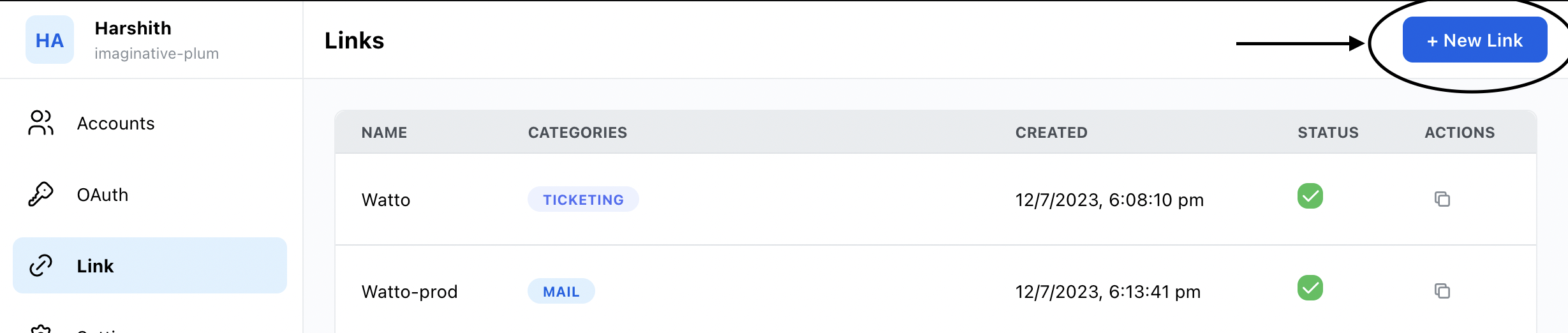
1. On the Links tab, Click on `+ New Link`:
 2. Provide the necessary information and click on Create. Once done you can copy the link URL
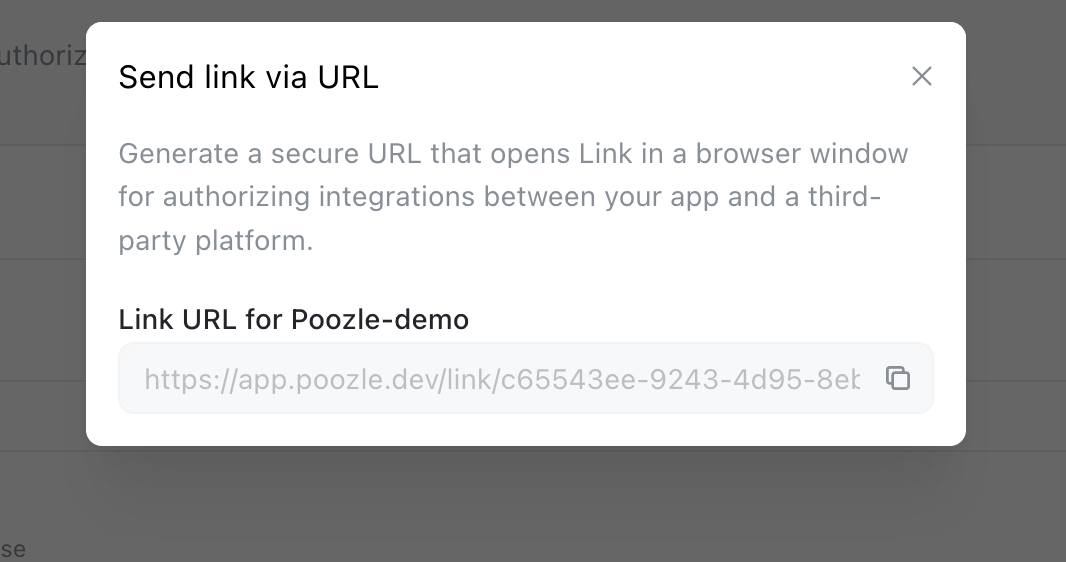 3. You can use the copied URL to connect accounts. You may also incorporate a button in your user interface, redirecting users to this URL for connecting with third-party apps.